Analyze process measures
You can use the Process panel to specify the measure to be analyzed. You can use the preset measures Frequency or Throughput time, or select another measure provided by ARIS Process Mining, such as case duration or activity cycle time.
The Process explorer provides detailed information about all activities and connections of the process in a corresponding panel.
Click the
 Navigation menu icon in the program header.
Select Projects. The Project panel opens.
Select a project from the list in the Project panel. The recently opened project is preselected in the panel by default.
Click the header of the Project panel. A list of available projects is displayed.
Select a project from the list.
Move the mouse pointer over an analysis in the Project panel.
Click
 Add new app. A selection of available apps is provided.
Select the Process explorer app. The analysis opens with the Process explorer app.
The Process explorer app initially shows the most common process, that is, it shows the activity flow that occurs most frequently. And the Process panel enables you to configure the activity flow displayed.
You can hide the Process panel and display it in the compact view. Click the
 Switch to compact view icon at the bottom of the Process panel.
Click an activity or a connection in the process graph to display detailed information. A corresponding information panel opens. Basic information is displayed on the General tab. When you select an activity, you can display additional information about the incoming and outgoing connections. To do this, click Connections in the panel.
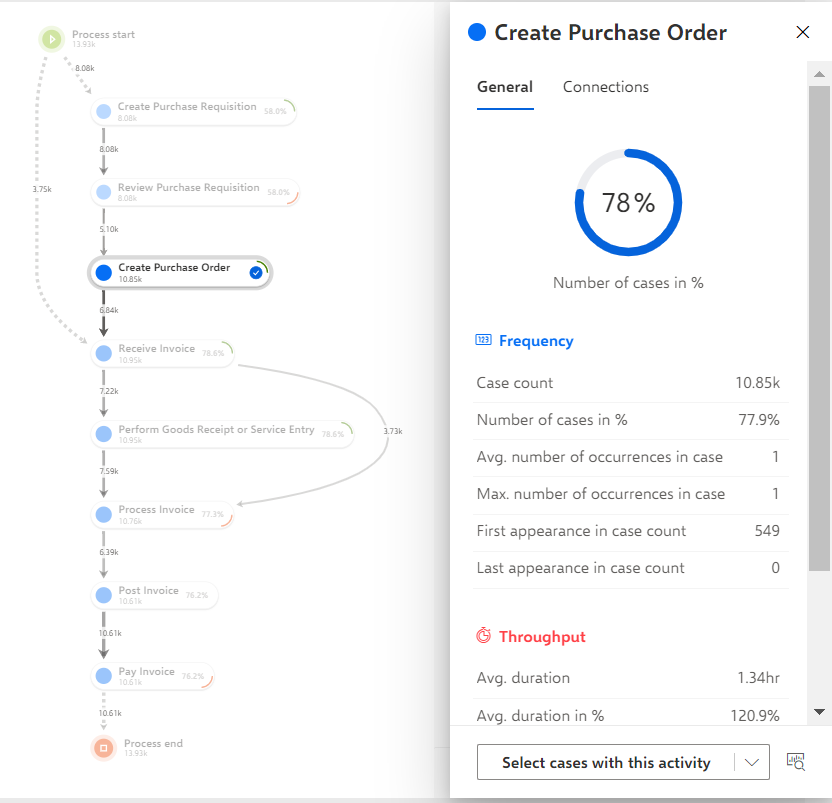
On the information panel, you can set a filter for the selected element. Click Select cases with this activity or Select cases with this connection on the bottom of the information panel and select a filter.
If you selected an activity, you can select
... with this activity (default) - Considers cases that contain the selected activity.
... without this activity - Considers cases that do not contain the selected activity.
... starting here - Considers cases that start with the selected activity.
... ending here - Considers cases that end with the selected activity.
If you selected a connection, you can select
... with this connection (default) - Considers cases that contain the selected connection.
... without this connection - Considers cases that do not contain the selected connection.
You can select the measure to be analyzed on the Process panel.
You can increase or decrease the number of included activities or connections in the analysis. To do this, use the corresponding sliders or the -/+ icons on the Process panel to increase or decrease the corresponding percentage.
To set the default settings, click Reset.
Your settings are applied.