Specify filter conditions
You can filter the processes to display only activities or cases that meet certain conditions. The filters help you to examine specific aspects of your processes. You can filter the processes by fields, individual activities, or a specific activity sequence.
If you filter processes by fields, only the cases that match certain field values, such as a duration value, are displayed.
Note that if a field selected as a filter contains parameters, such as a calculated field, only the default parameter values are evaluated. This applies to filters that you set manually or take from other components.
If you filter processes according to individual activities, only the cases that contain specific activities are displayed.
If you filter processes according to a specific activity sequence, only the cases in which certain activities follow each other are displayed.
Add a filter, for example, to an analysis or an app component. A dialog to select a filter method opens.
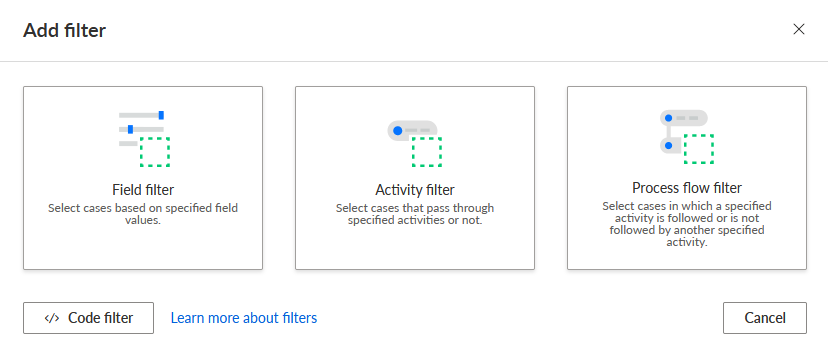
To filter processes by specified fields, click Field filter . The Add field filter editor opens.
Select a field in the Fields panel.
Specify the filter conditions for the field values.
Different options are available depending on the field type.
For numerical fields, such as case duration, you can specify a value range.
For date fields, such as activity start time, you can specify a time range.
For text fields, such as activity name, you can specify alphanumeric values.
Alternatively, you can click Switch to value selection to set the filter conditions based on the field values.
To filter processes by activities, click Activity filter . The Add activity filter editor opens. You can select cases that include or exclude certain activities.
You can drag and drop an activity from the Activities panel, or you can click the Add activities drop-down menu and select an activity.
To filter processes by a specific sequence of activities, click Process flow filter . The Process flow filter editor opens.
You can drag and drop an activity from the Activities panel, or you can click a drop-down menu and select an activity.
You can define a Field filter, Activity filter, or Process flow filter using the Code filter . The code filter uses the ARIS Process Mining process language and supports variables that you can use to define dynamic filters. Click
 Code filter to open a textual editor.
Click Add.
You specified a filter condition.
Tip
You can also filter processes by selecting the filter values directly in an analysis.