Apply saved filters
You can open filter settings that are saved as a bookmark. The filter settings are applied to the currently opened analysis.
Prerequisite
You saved filter settings as a bookmark.
Click the
 Personal favorites icon in the analysis header. The Bookmarks panel opens.
Open the My assets tab.
Example
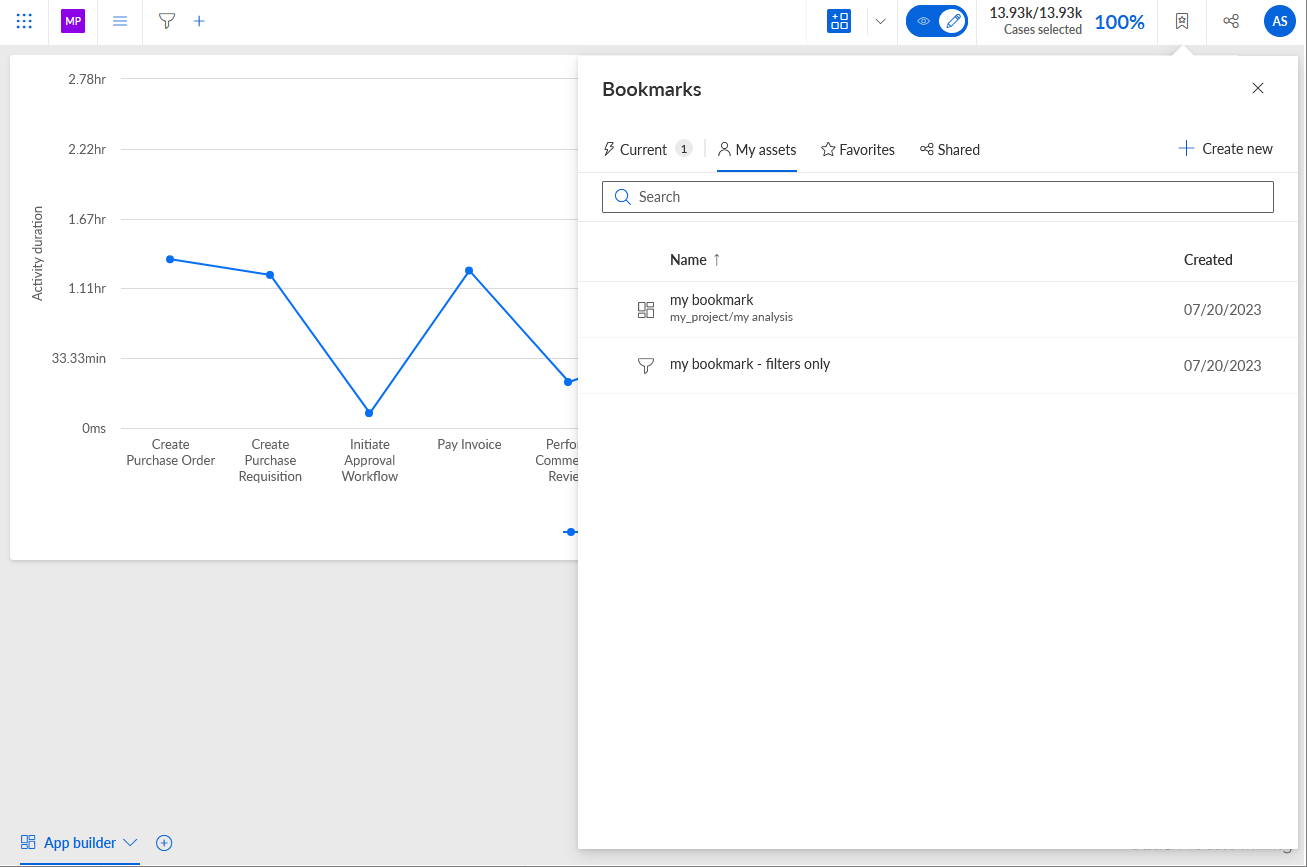
Click the bookmark with the filter settings.
The bookmark opens and the filter settings are applied to the current analysis.
How are the saved filter settings applied to the current analysis?
Level by level, ARIS Process Mining compares the initial filter settings of the current analysis with the filter settings saved in the bookmark.
If no filter exists in the analysis, all filters from the bookmark are added to the analysis and applied as ad-hoc filters.
Existing ad-hoc filters in the analysis are always removed when a filter from the bookmark is applied.
A level filter in the analysis is replaced by a filter from the bookmark only when both filters are from the same level and both filters apply to the same field. For example, a project filter in the analysis is replaced by a project filter from the bookmark only if both filter the same field, for example, the Activity name field.
If the bookmark contains a level filter but the analysis does not, the filter from the bookmark is added to the analysis as an ad-hoc filter.
If the level filter is locked in the analysis, the same level filter from the bookmark is added as an ad-hoc filter to the analysis. Locked filters cannot be removed.
If the analysis contains an unlocked level filter, but the bookmark has no level filter at the same level, the level filter is removed from the analysis.