Use AI-generated fields
Depending on the kind and complexity of the tasks or your questions to Companion, AI creates calculated fields that the AI temporarily uses to calculate the result. A created temporary field is, for example, a dimension or a filter criterion (see the examples below). You can save the AI-generated field in the analysis model of the currently used data set and reuse the field as a criterion in other analyses.
Enter your question or task in the chat box and click the
 Send icon to send your message.
Companion displays the result of your question or task in the chat panel.
Add the AI-generated field as a calculated field to the analysis model.
Click View data source (AI-generated field) below the created component (chart or table). (AI-generated field) is displayed only if Companion has created a temporary calculated field. Detailed information about the existing fields used for the calculation and about the newly generated field is displayed.
Click Show calculation next to AI-generated field. A dialog opens that shows the calculation of the AI-generated field.
Click Add field to analysis model.
The AI-generated field is added to the analysis model of the current data set.
When you click the Copy component icon, for example, to use the component in your analysis, the AI-generated field is automatically added to the analysis model.
Once the AI-generated field has been added to the analysis model, the field will no longer be displayed as an AI-generated field in future queries.
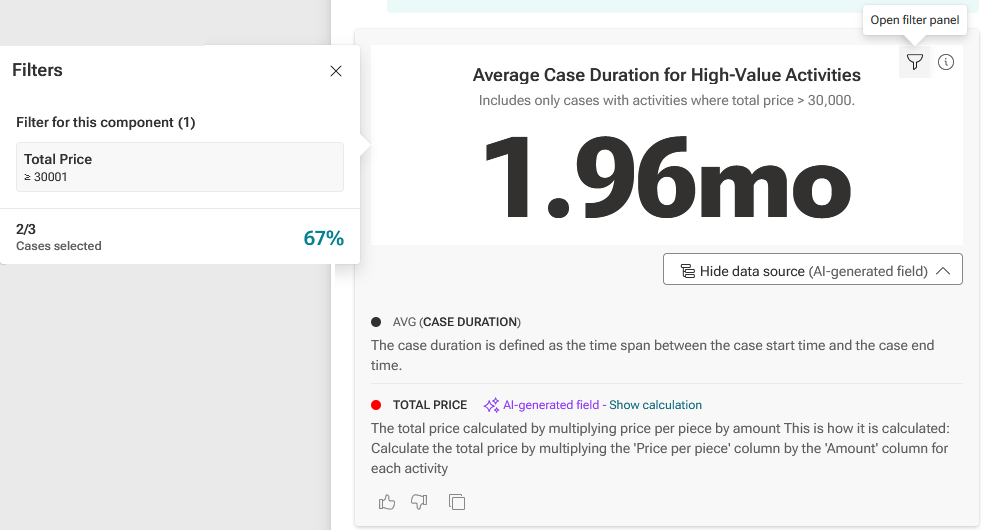
If Companion uses the generated field as a filter criterion, you can click the  Open filter panel icon to view more details about the filter criterion (see the example 2 below).
Note that you must recalculate the analysis model if you add a new field to the analysis model.
Task:
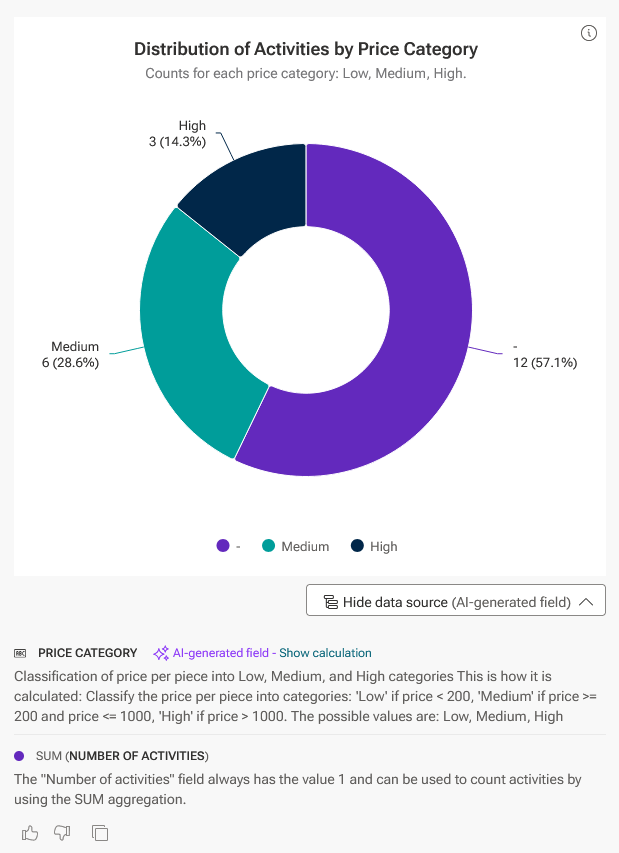
"Classify the prices per piece into 'Low' (price<200), 'Medium' (price >=200 and price <= 1000) and 'High' (price > 1000) and show me the activity distribution over this classification."
Result:
Companion uses the existing NUMBER OF ACTIVITIES field and creates the new PRICE CATEGORY field with the values Low, Medium, and High.
Task:
"Give the average case duration for all cases where the activity total price (price per item * amount) is larger than 30k."
Result:
Companion uses the existing CASE DURATION field and creates the new TOTAL PRICE field as a filter criterion.