Create event logs
You can create custom event logs and use these event logs instead of the default event log in all analyses.
You can find the event log definitions in the Event log section of a data set. The Default Event Log is automatically generated based on the definitions found in the activity table in the data model, using the selected columns to define the event log. While the data and fields for case ID and timestamp remain fixed structures during the processing and storage of process instances, the configurations for the event log provide the flexibility to alter the perspective on activities by modifying the definition of the activity field. This not only determines which activities should be displayed on the process graph, but also affects how the traces and variations of process instances are constructed.
You can define the activity field within an event log definition using the ARIS process language. The ARIS process language provides you with several operators and operands, such as the REMAP operator, to remove, rework, or transform activities. For a complete list of the available operators and operands, see the Scripting operators and operands chapter.
Note that operators that depend on the activity name, such as an iteration over activities, the activity name or variant ID, are not allowed because they cannot be calculated.
Prerequisites
You loaded data into the process storage.
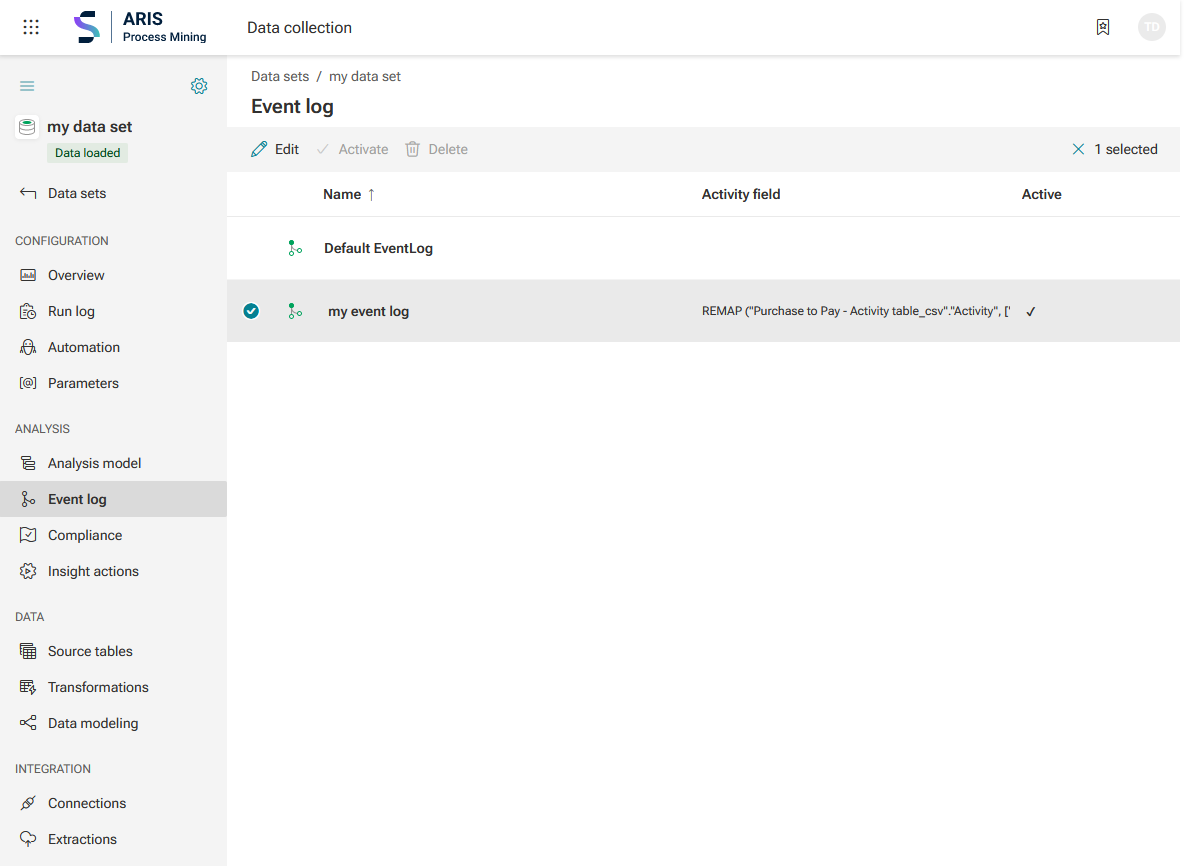
Click Event log in the Data set panel. The Event log section opens. The page contains the Default Event Log that is automatically created when an analysis model is available. The Default Event Log is activated by default. To work with event logs, you must first load data into the process storage.
Example
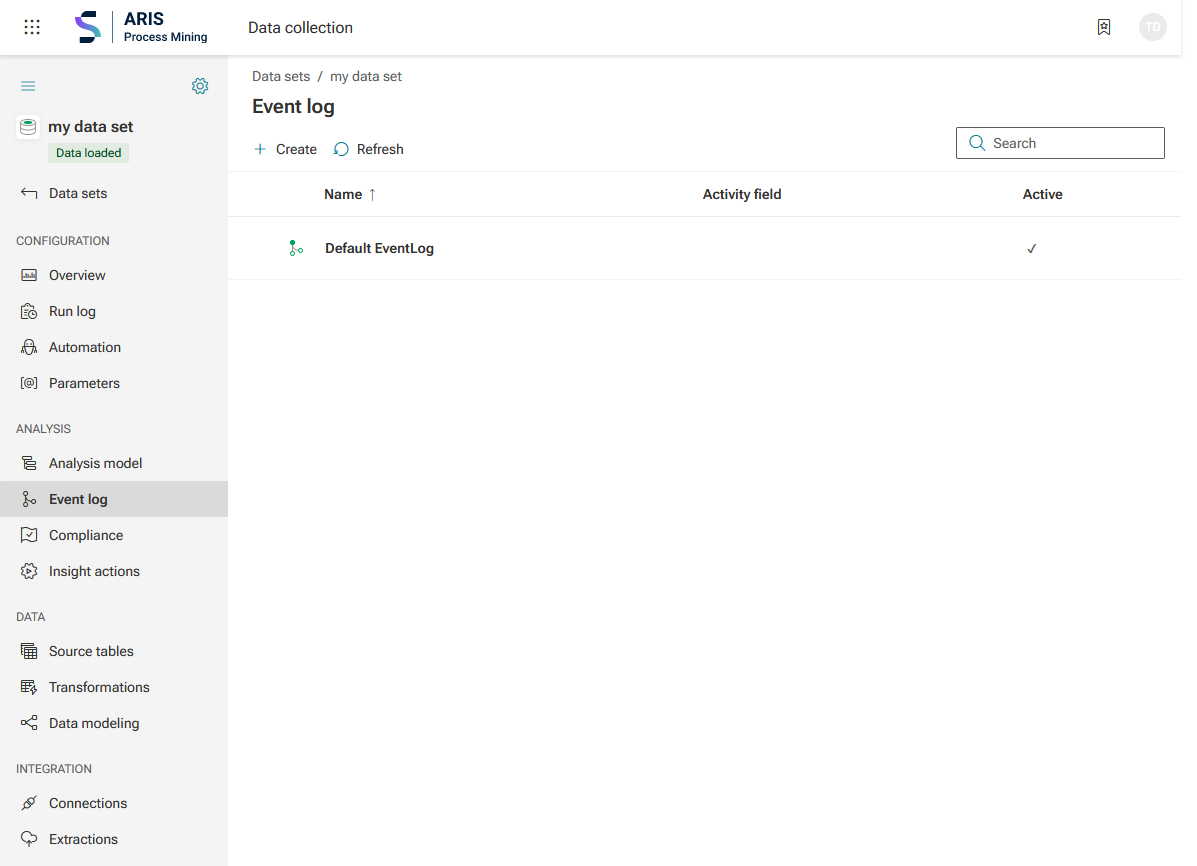
Click Create. The Create event log dialog opens.
Example
By default, a preview of the current process is displayed in the Process explorer in the dialog.
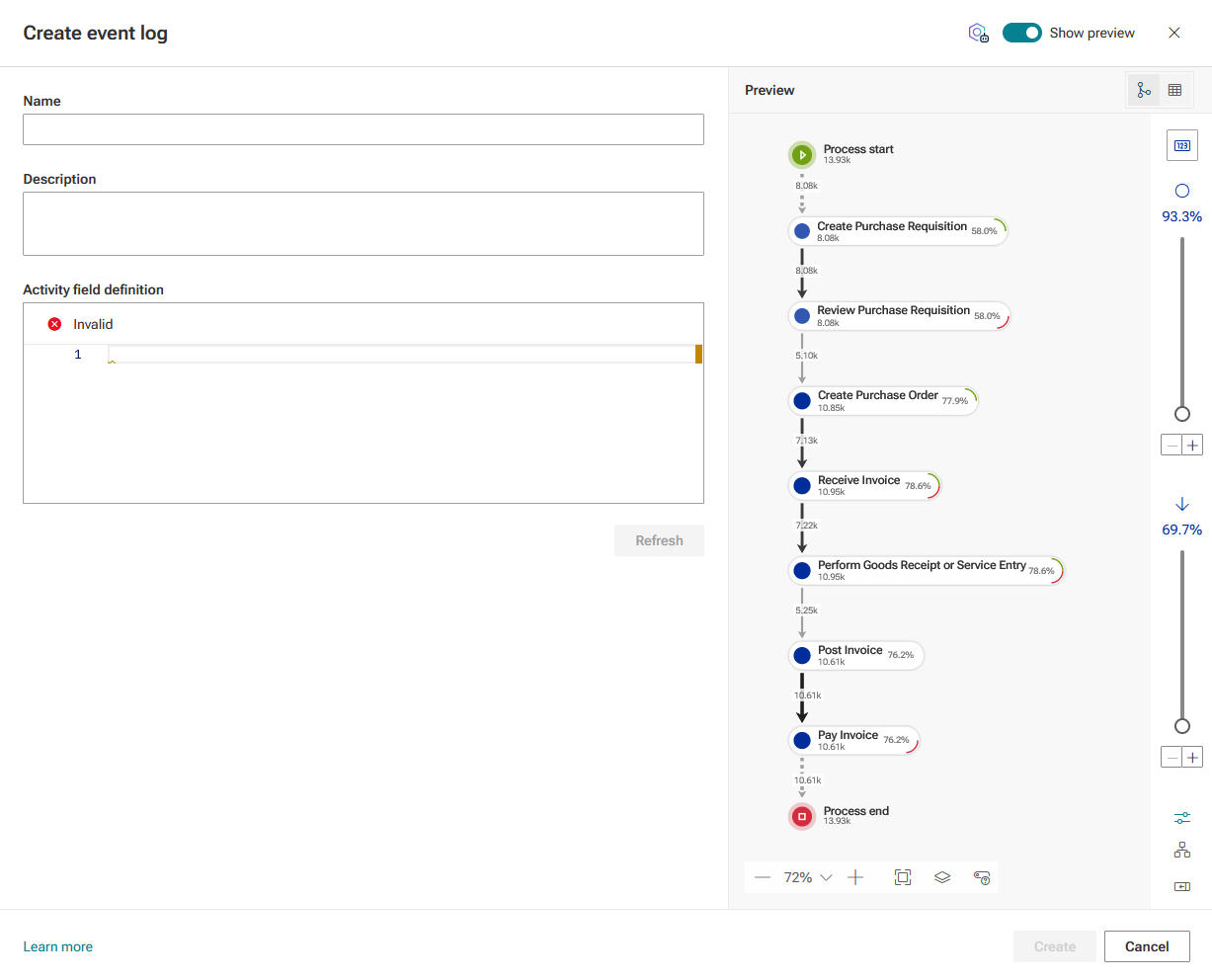
Enter a name for the event log.
You can enter an optional description. The description is also used as a tooltip.
In the Activity field definition, you can define a calculation rule to create an event log. You can use the ARIS process language to define a calculation rule.
Click Refresh to display your changes in the preview.
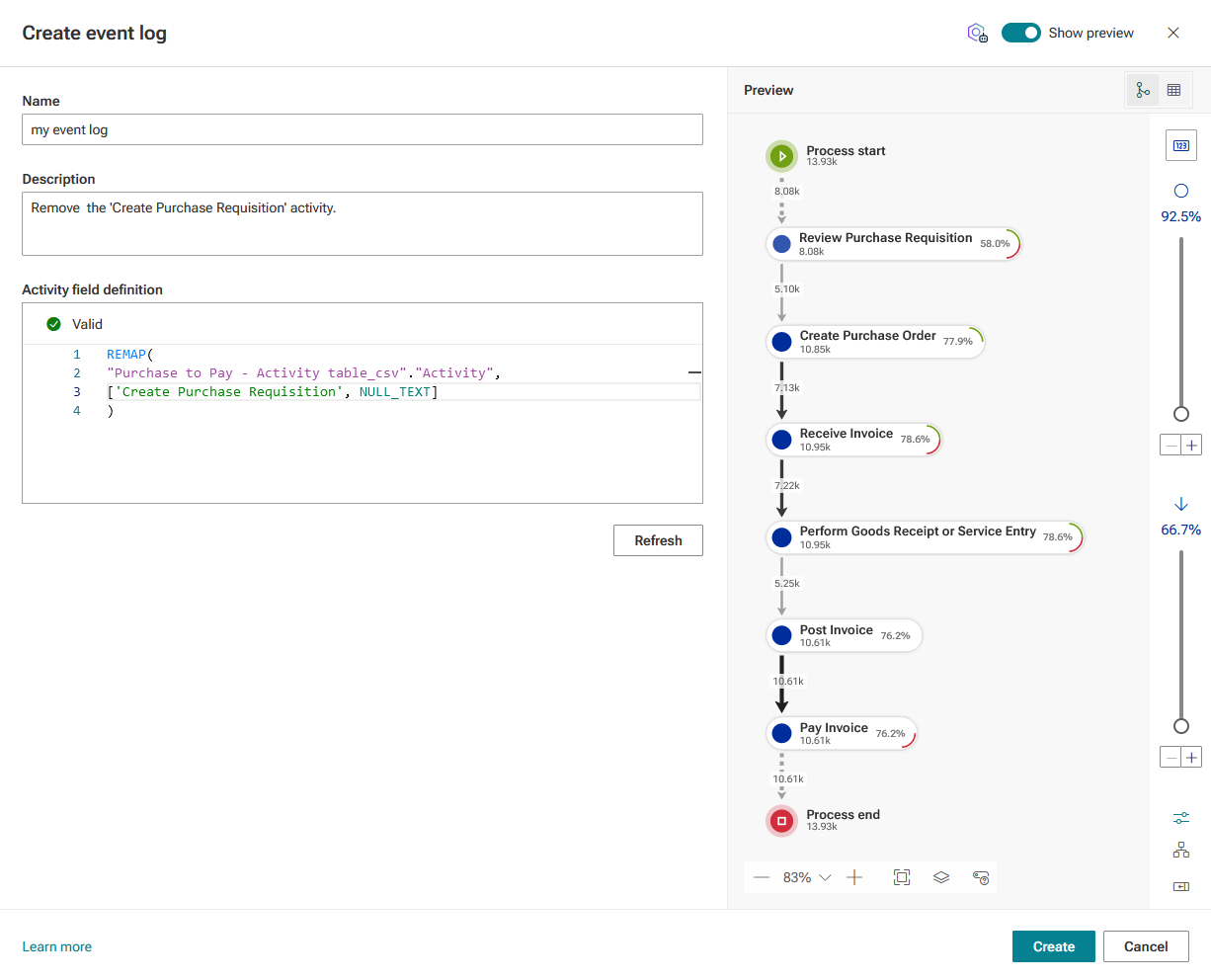
Example
The calculation rule in the example removes the Create Purchase Requisition activity from the process. The recalculated process starts now with the Review Purchase Requisition activity.
To display the preview in the table view, click the table view (
 ) icon.
To hide the preview, disable the Show preview option. The preview is displayed by default.
Click Create.
You created a new event log that is listed on the Event log page.
To edit or delete an event log, select the event log and click  Edit or
  Delete.
If you want to use a specific event log by default in your analyses, select the event log, click Activate, and then click Recalculate fields. The analysis model is recalculated based on your configured event log. Once activated, all your analyses are based on the activated event log by default. However, you can select a different event log to be applied to a current analysis on an ad-hoc basis.
Notes
Note that the activated event log cannot be changed ad hoc for compliance analyses and conformance checks. Compliance analyses and conformance checks can only be performed based on the currently activated event log. The menu for selecting event logs is not available there.
Note that if you created an activity mapping for the compliance analysis, the mapping remains unchanged regardless of which event log is activated.
Note that insight actions always uses the Default EventLog and ignores the currently activated event log. The menu for selecting event logs is not available there.
The new event log with the changed process variant is listed on the Event log page and activated.