Connect data tables
You must connect the tables of the data model to combine and structure the process data. You connect the activity table to the enhancement tables in the data model by relating them. The tables must contain appropriate data, including specific columns that you can use to relate the tables. For two tables to be related, each table must contain a column (key column) with the same values. These columns are called foreign keys. After loading the data into the process storage, only data connected to cases and activities are available in the analysis model.
Note that duplicate foreign keys in the enhancement tables are not supported. The loading process will not fail, but there is no guarantee that the correct column value is taken as the foreign key.
The data model displays the cardinality of related tables. The cardinality indicates the number of entities involved in a relationship. For example, by connecting the activity table with the case table several activities are assigned to each case. The cardinality is N (activities) to 1 (case).
First, connect the activity table with an enhancement table. For example, the ActivityEvent_csv activity table with the CaseOrder_CSV table that contains the case data.
Click Add relation on the activity table.
For all other tables on the Data modeling page, a Connect with table button is displayed.
Click the Connect with table button on an enhancement table. The Edit relation dialog opens. The dialog shows both tables with their columns.
Example
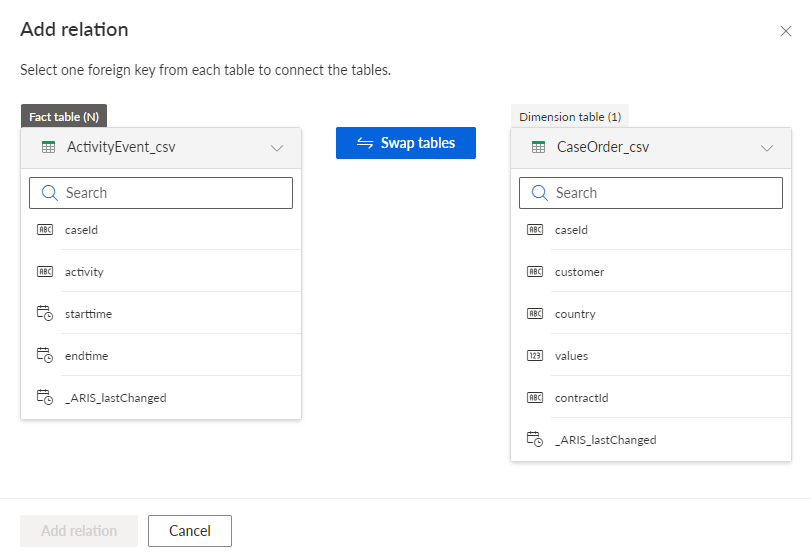
Select the columns with the foreign key from each table to connect both tables, for example, the caseId column.
Example
Both tables are connected by the column caseId as foreign key with a cardinality of N to 1. The connection ensures that several (N) activities are assigned to exactly one (1) case. Or vice versa, every single case includes several activities after the tables are connected.
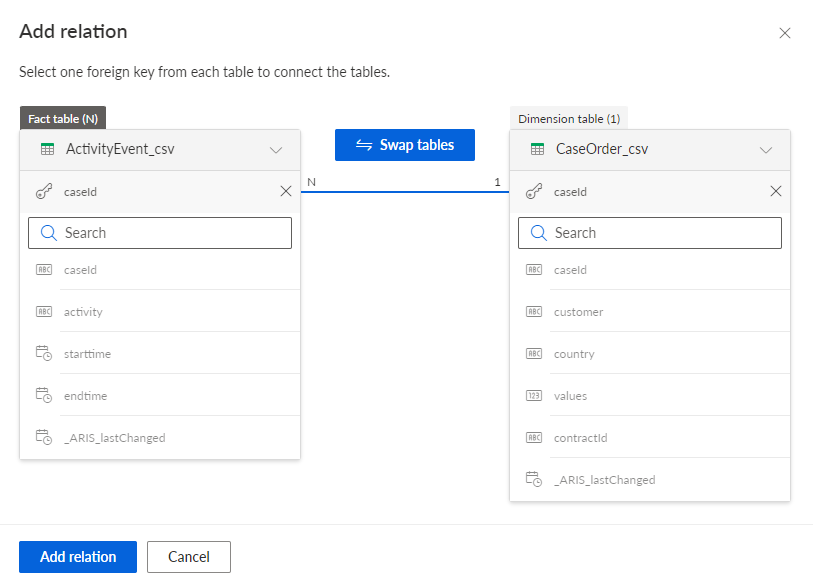
If you want to change the cardinality for a table from N:1 to 1:N, click Swap tables. The change of cardinality is necessary if the cardinality is not assigned correctly.
By default, the first selected table is placed on the left side and the second table is placed on the right side. The table on the left is always assumed to have cardinality N, and the table on the right is always assumed to have cardinality 1.
If you did not select the tables in the correct order (for example, the case table was selected before the activity table and is therefore listed on the left), you must manually change the order by clicking Swap Tables to assign the correct cardinalities.
Click Add relation.
The activity and case tables are now connected. The selected foreign key is displayed in the data tables and the connection is labeled with the cardinality (N:1 or 1:N).
Example
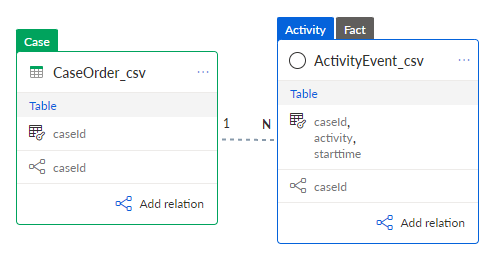
You can enhance the data model with additional data by connecting more enhancement tables to the existing tables.
You have configured the data model that combines and structures the data of your source tables.
You can now load the data into the process storage.
To enhance the data model, you can connect the following tables according to the Source data example with suitable foreign keys.
Connect the CaseOrder_csv table to the Contract_csv table to add contract data.
Connect the CaseOrder_csv table to the Delivery_csv table to assign delivery boxes to the cases.
Connect the Delivery_csv table to the Box_csv table to add box data.
Connect the Box_csv table to the BoxType_csv table to add more box data.
The data model can now look as follows.