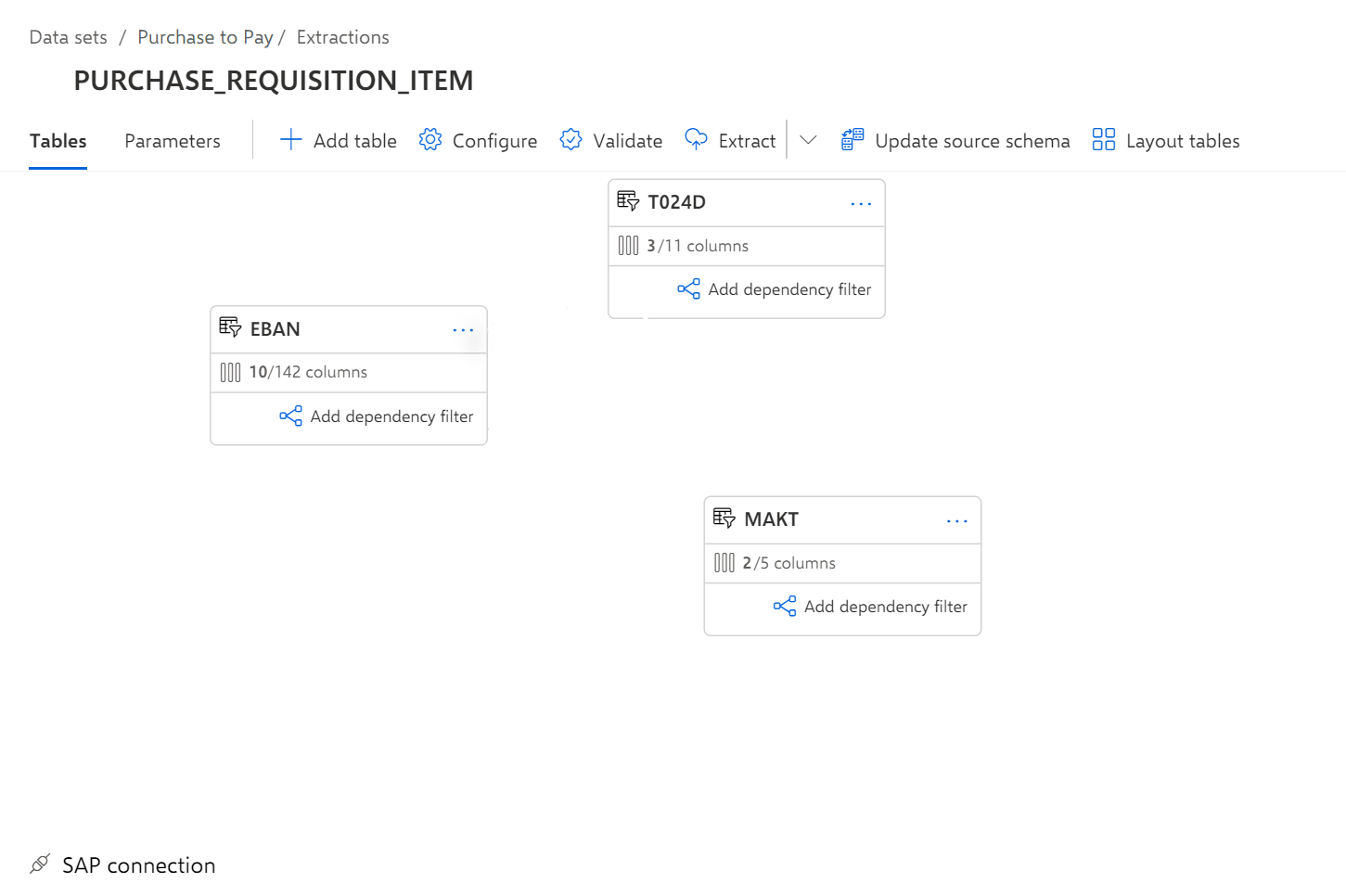
Configure 'Purchase requisition item' extraction
You must specify the tables to extract from the source system. For each table, you can select the columns to read and define filters to reduce the extracted source data.
Perform the following steps to configure the PURCHASE_REQUISITION_ITEM extraction.
Click the PURCHASE_REQUISITION_ITEM extraction in the list. By default, the corresponding component for configuring the extraction opens on the Tables page.
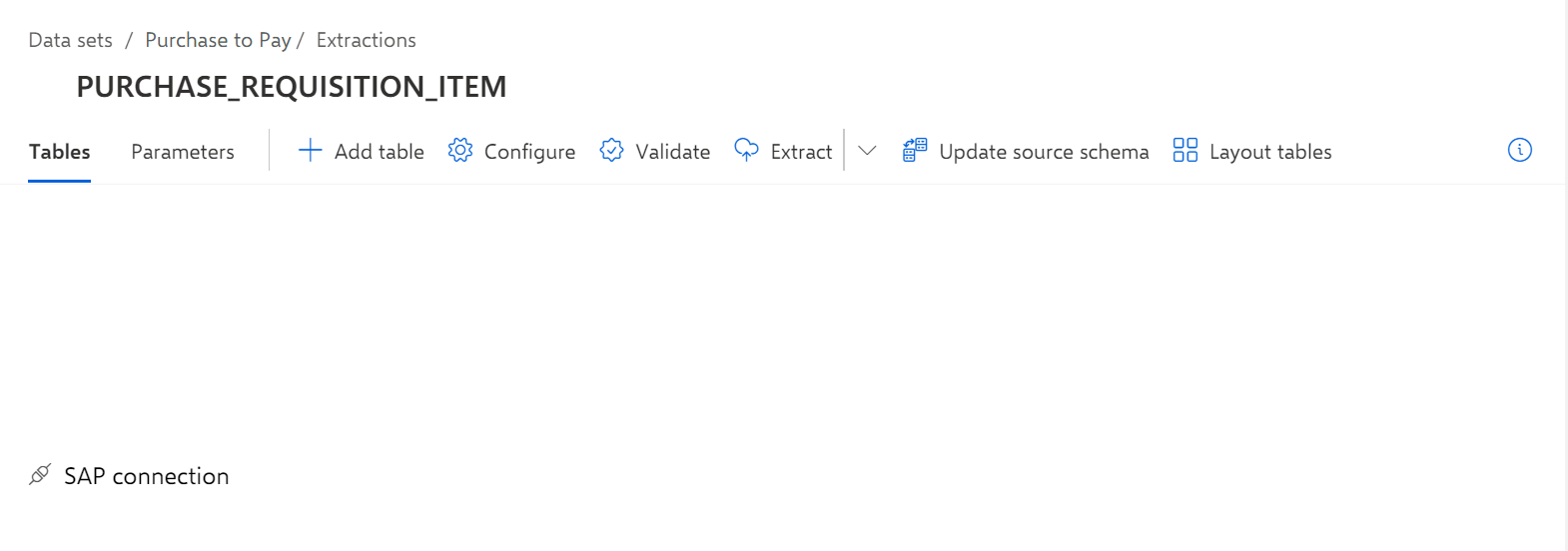
Click Add table to specify the table you want to extract. The Add table wizard opens on the Select table page. The page lists all available tables of the selected SAP extraction.
You can click Refresh to update the table list, for example, if the listed tables are incomplete.
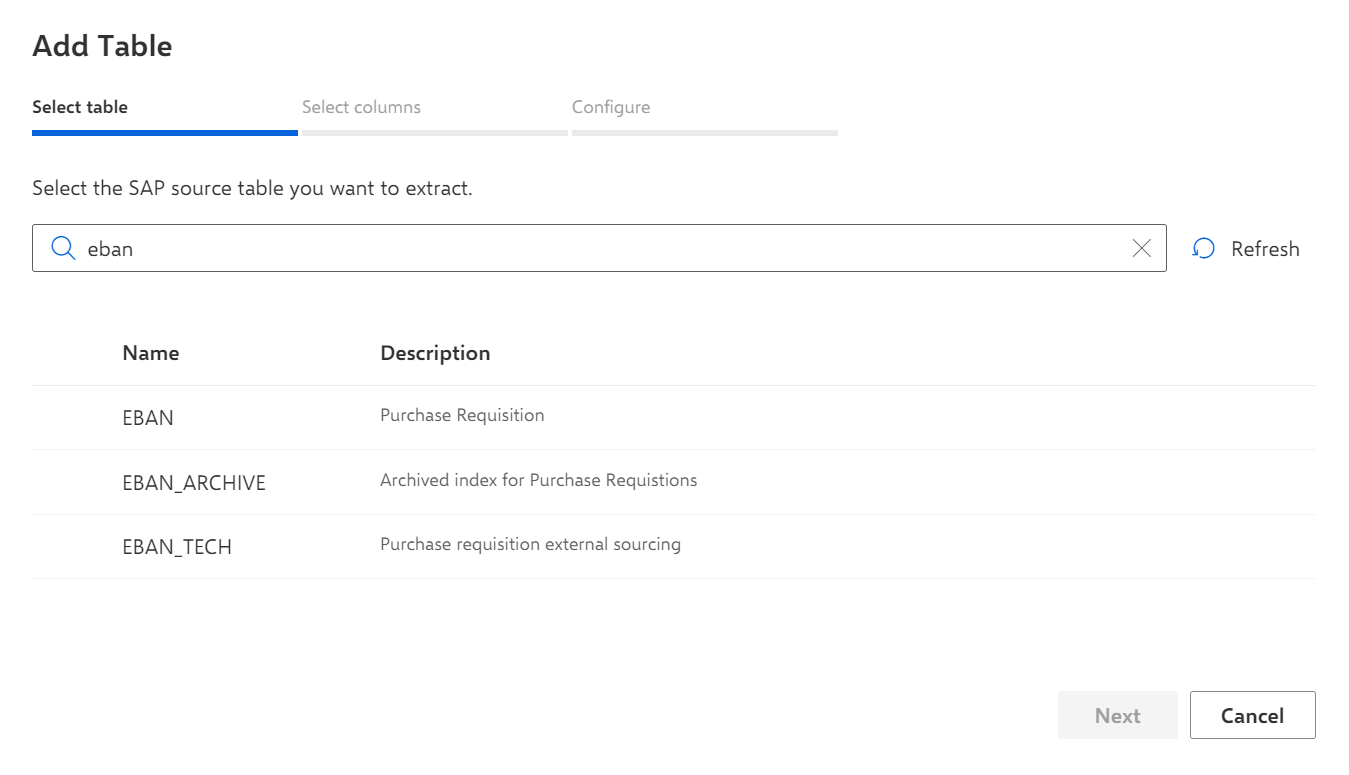
Select the EBAN table for this example.
Click Next.
Select the columns you want to extract. Columns with unsupported data types are disabled. For this example, select the BANFN, BNFPO, ERNAM, ERDAT, MATNR, WERKS, MENGE, MEINS, BADAT, DISPO columns.
You can click Refresh to update the column list, for example, if the listed columns are not complete. Note that re-extracting the data from the SAP source system may take a longer time.
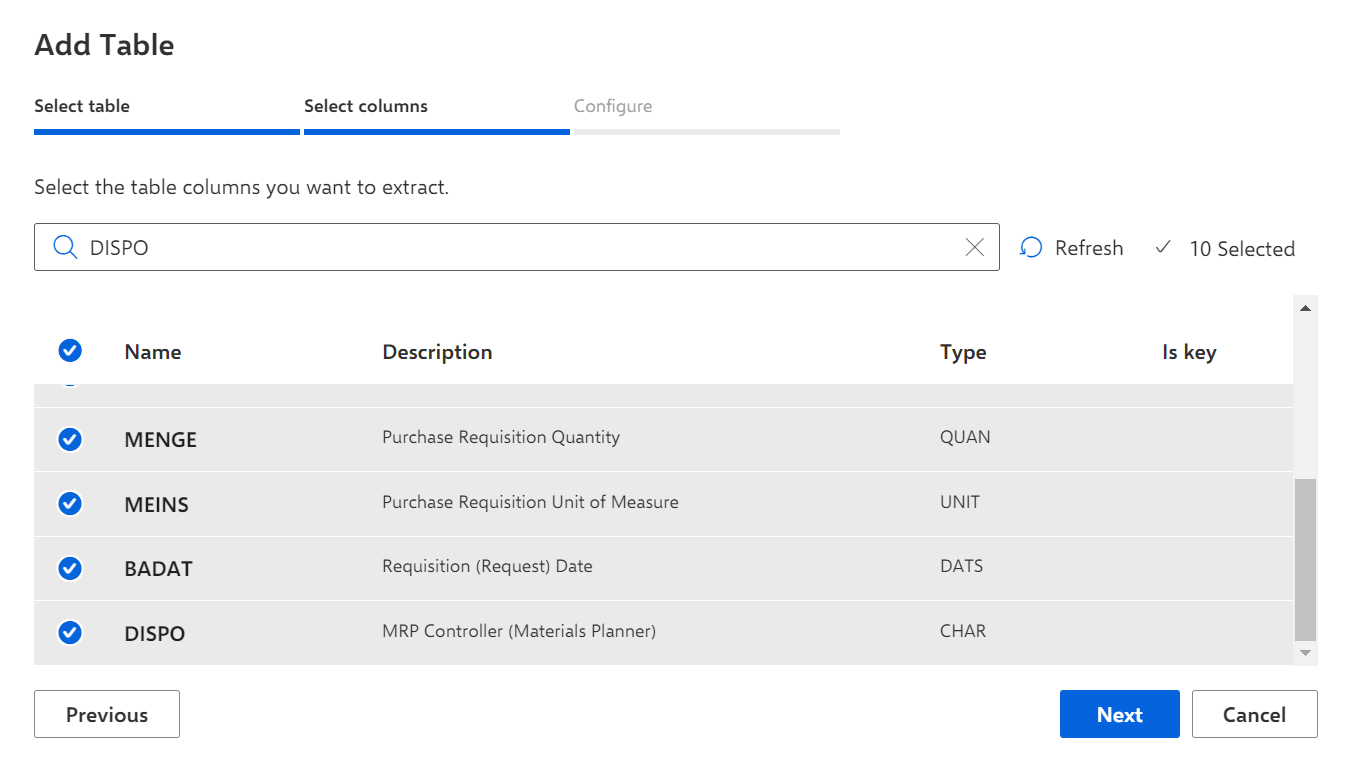
Click Next. The table configuration page opens.
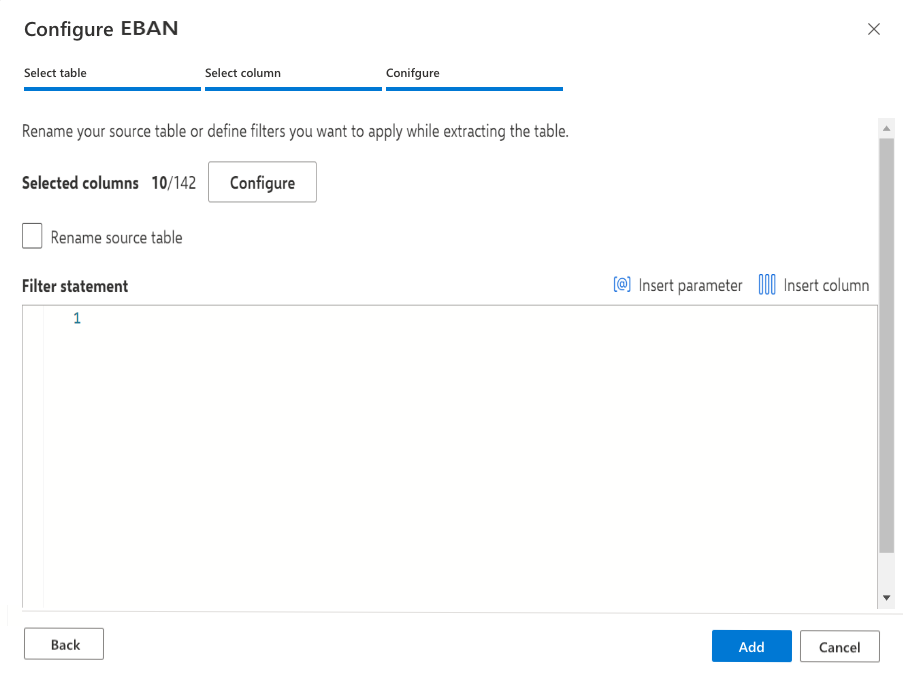
You can define filters in the Filter statement box using ABAP Open SQL statements.
Click Next.
You can change the table name and specify the source table type.
The table type is relevant for a later replacing or updating the uploaded source data. If you select the Table type, the entire table is replaced by a new uploaded table. If you select Incremental table, the existing source table and the uploaded data are merged. That is, only individual records in the source table are replaced with actually changed records and new records are simply added to the table.
To rename the table, enable the Rename source table option and specify a table name. The table name is used in the namespace of a data set. A table name can be used only once in an extraction.
Select the table type for the source table. You can also change the table type afterwards.
If you select the Table type, click Add.
If you select the Incremental table type, click Next.
Specify a merge key used for an incremental update. The merge key is used to replace only the records in the source table that have actually changed. You can select one or more columns to specify the merge key.
Click Add.
The table is created and available on the Tables page of the data set.
Configure the T024D and MAKT tables following the same configuration steps. Additionally configure a filter for the MAKT table.