Upload data source file
You must upload the source file that contains the source data.
The P2P_demo_log.csv file of the demo data includes the required case ID, the activity, and the timestamp.
Click Source tables in the Data set panel. The Source tables section opens.
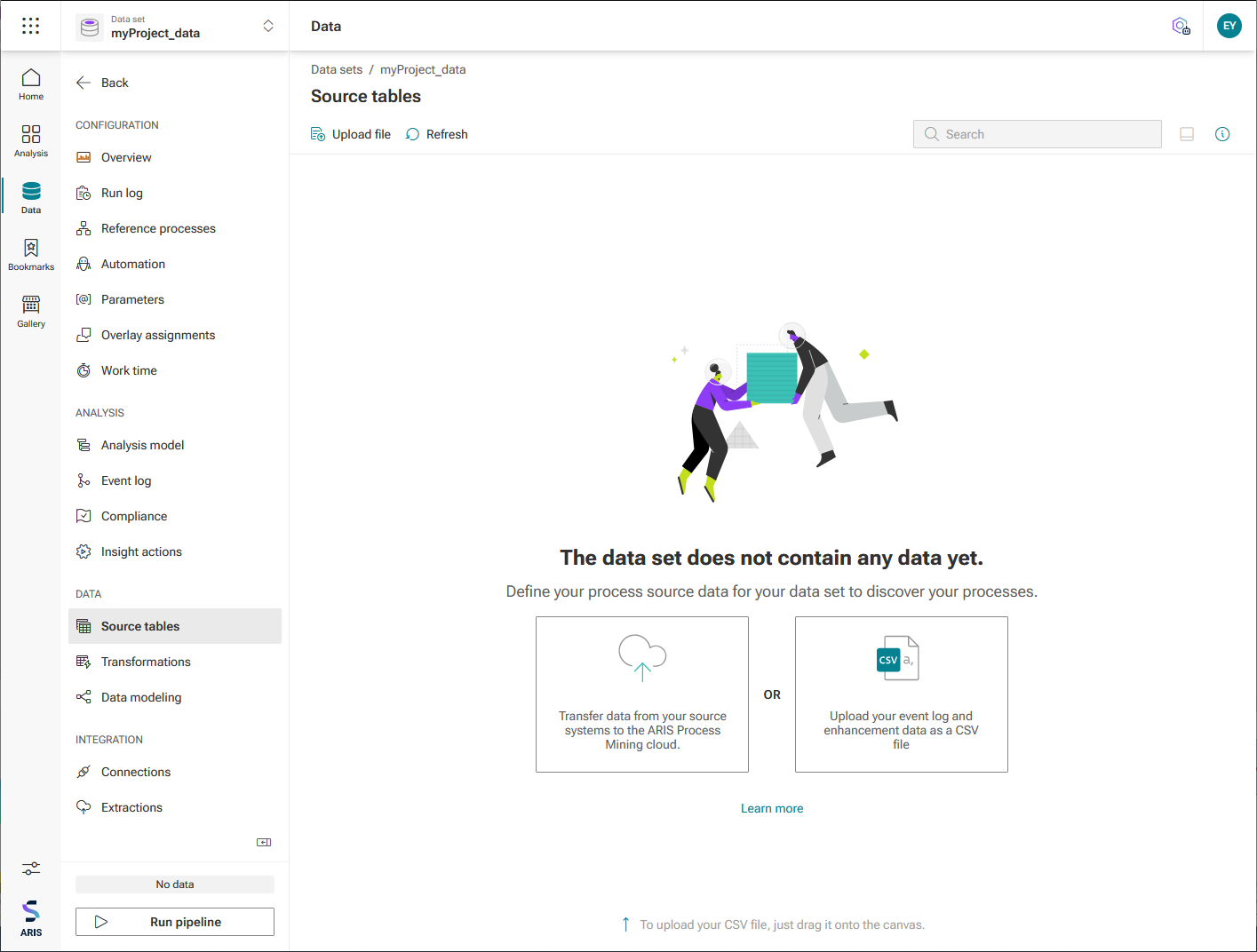
Click Upload file to add the required data to the data set. The Add data table wizard opens and displays the Upload CSV file page. The wizard uploads your data into the data set and parses it into a table.
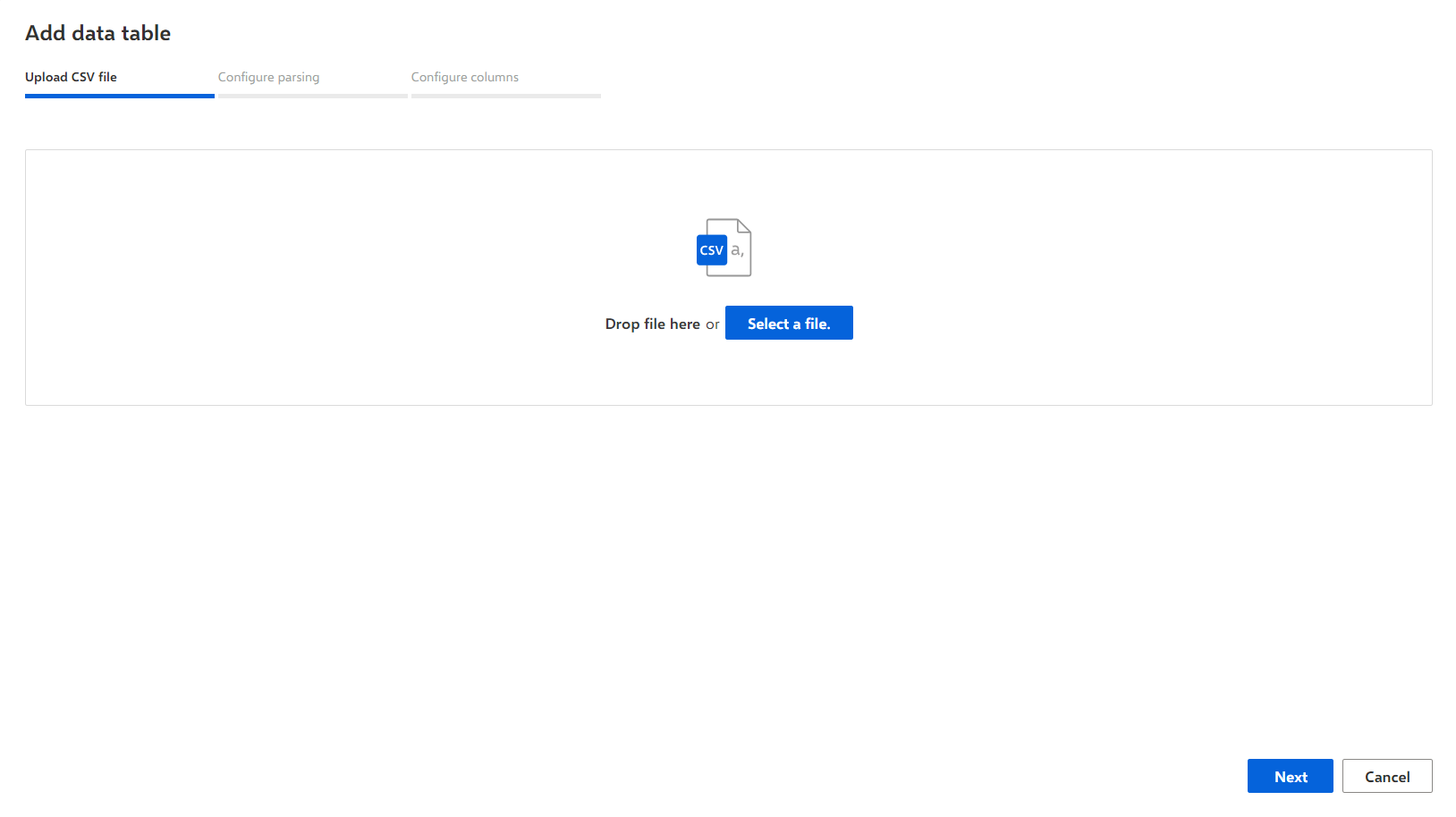
Click Select a file and select a CSV file with the process data or drag your CSV file into the highlighted area, for example, the P2P_demo_log.csv file.
After the data is uploaded, click Next.
The Configure parsing page opens, and displays the data read out and the data configuration used for parsing the CSV file. ARIS Process Mining automatically identifies the data configurations. If needed, you can change the parsing configuration and click Reload column to get an updated preview.
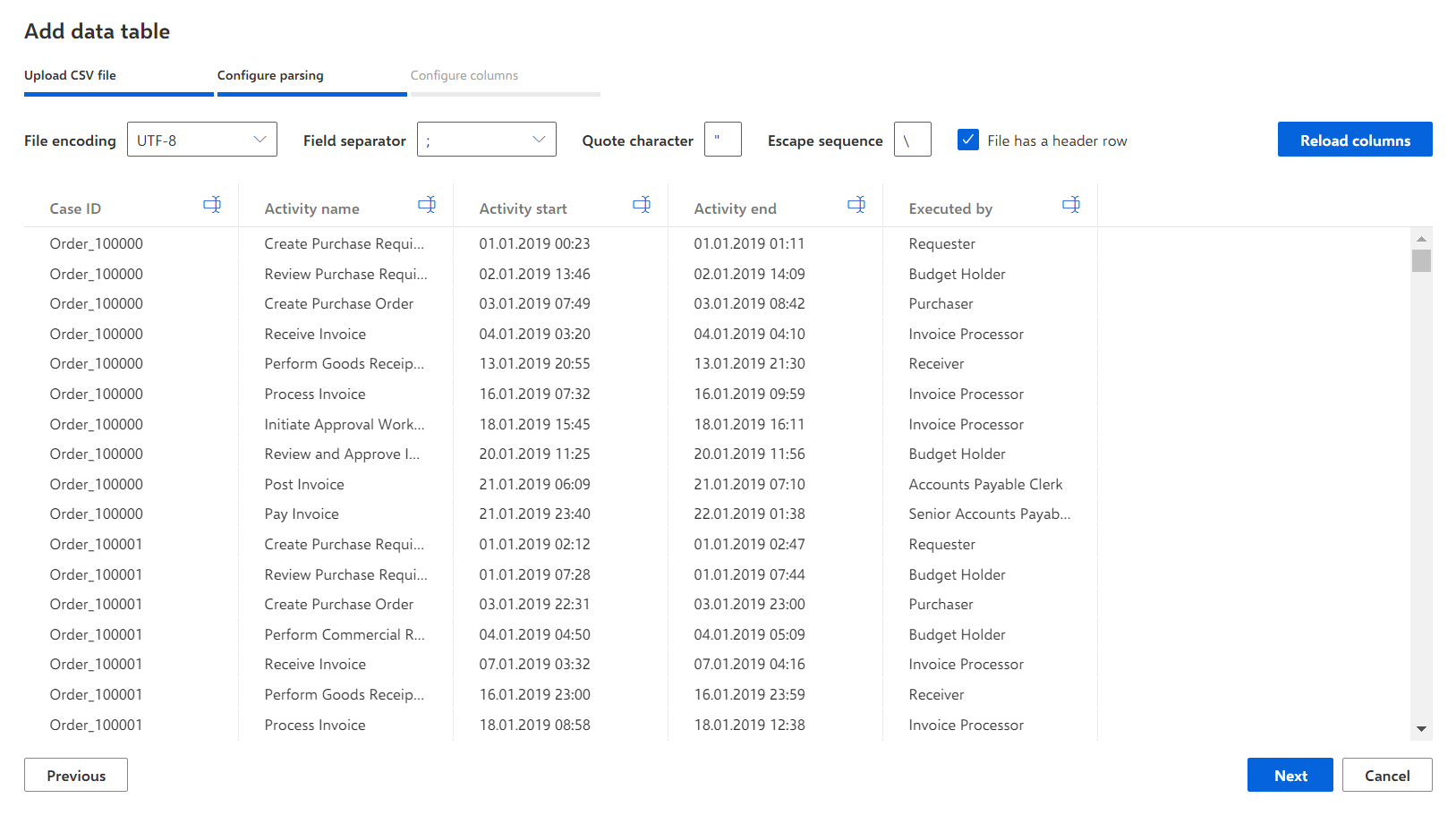
Click Next.
The Configure column page opens and displays the data type of each column. ARIS Process Mining automatically identifies the data types. You typically accept the preset settings. In some cases, you should manually select the correct data type or configure the format of the date or number.
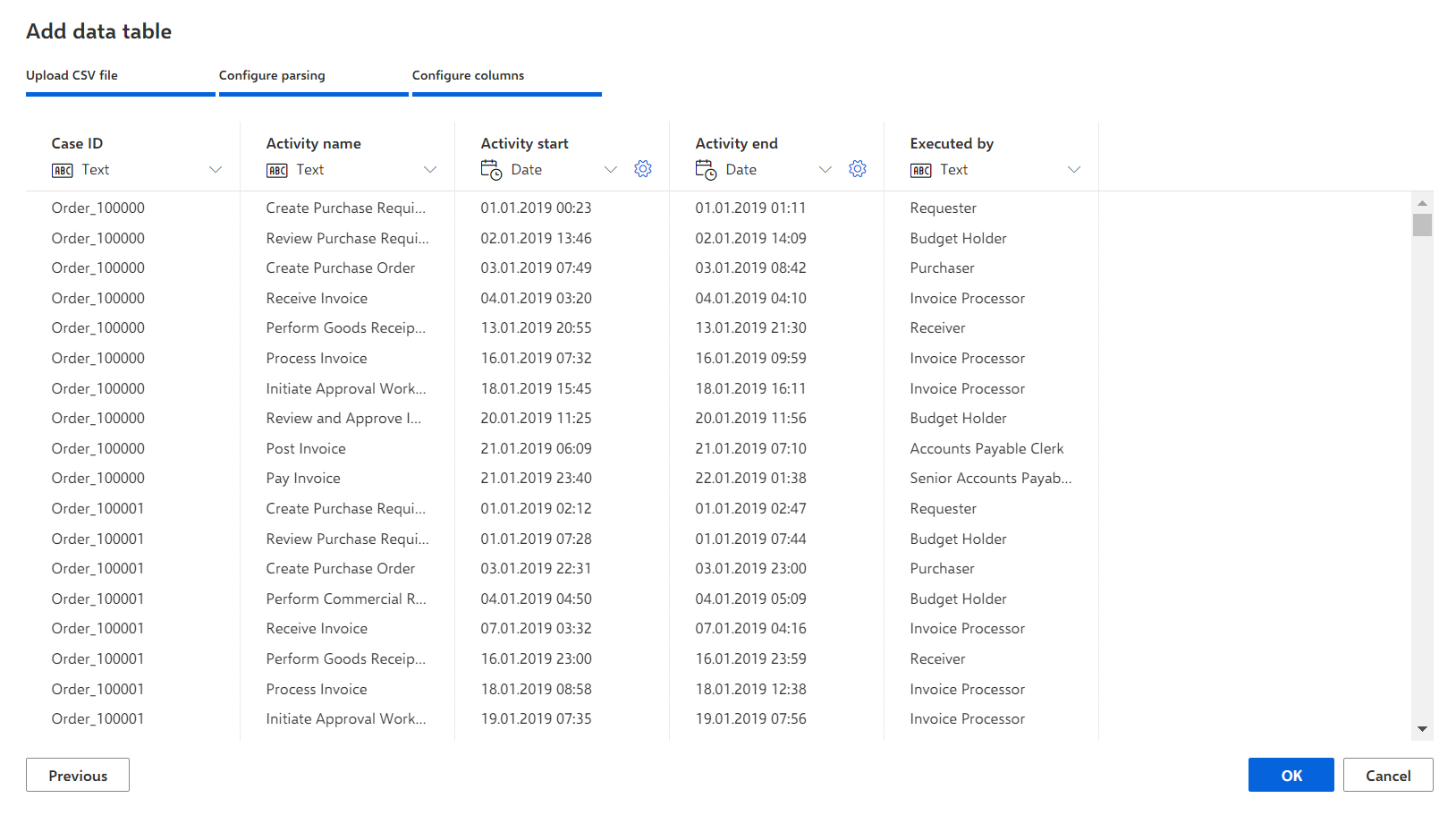
When parsing dates, ARIS Process Mining does not support time granularity above seconds, for example milliseconds.
Click OK.
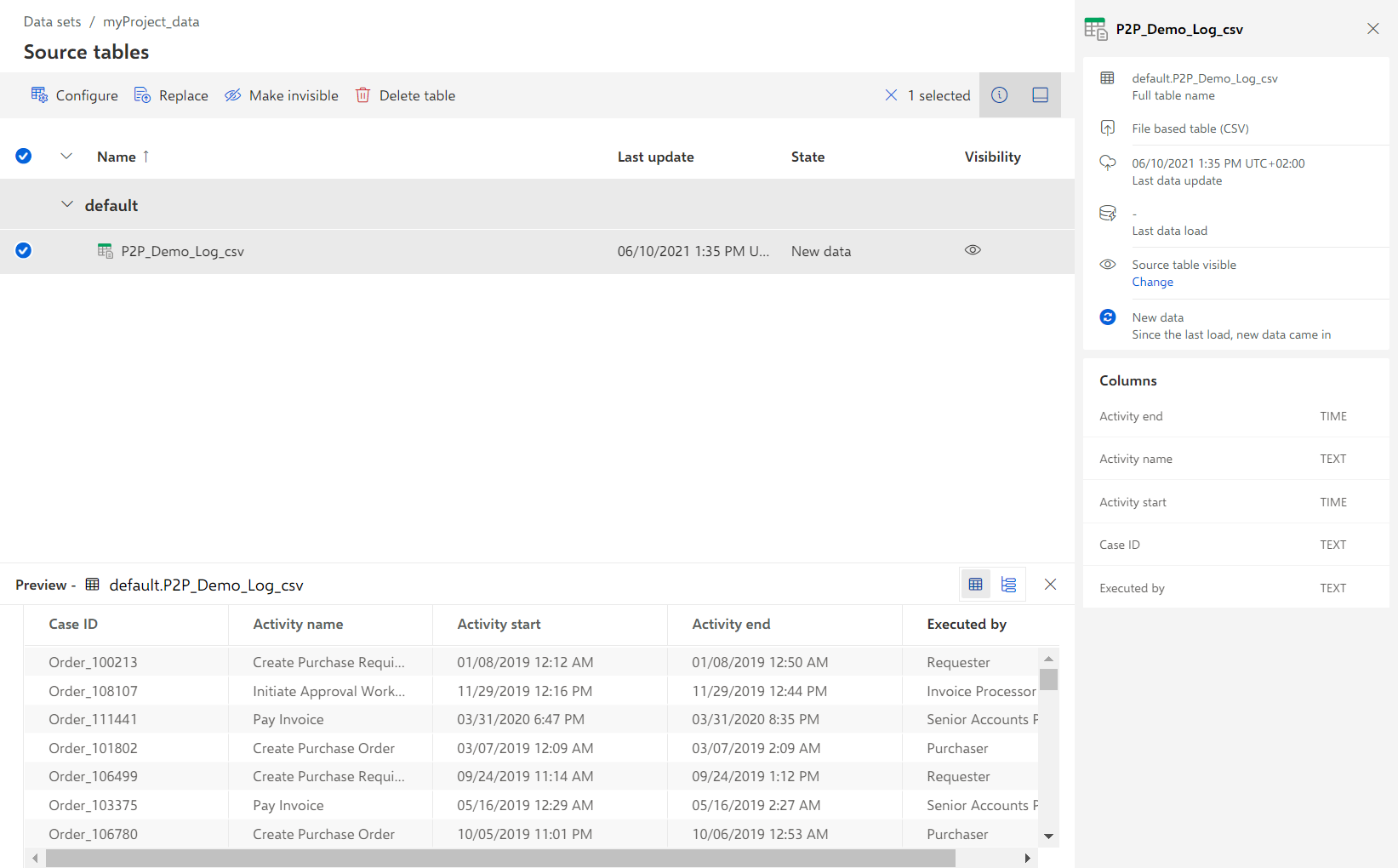
ARIS Process Mining created a source table including the data of the uploaded source file. The new table is listed on the Source tables page.
To see a preview of the uploaded data, click Preview and select the new source table.