Setup app components
Use the Setup options to assign the data to an app component and to setup an app component. The Setup options provided depend on the selected component, for example, a Line chart or a Table component.
Open the Setup options of the Configuration panel. The Setup options are displayed by default when you select a component in the app. You can also select Setup in the drop-down menu in the first line of the Configuration panel.
Example
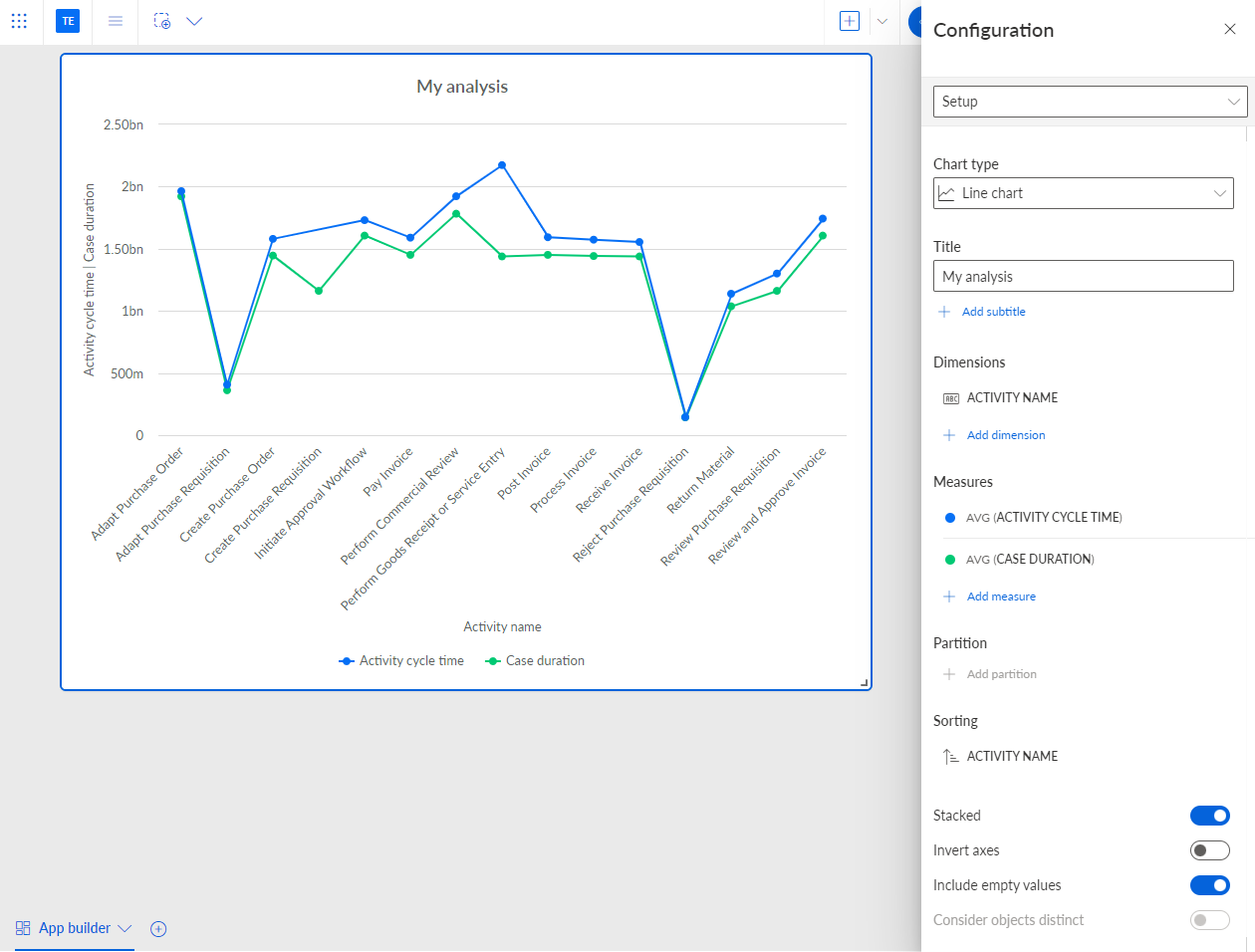
The Setup options of the selected Line chart component are displayed in the corresponding Configuration panel.
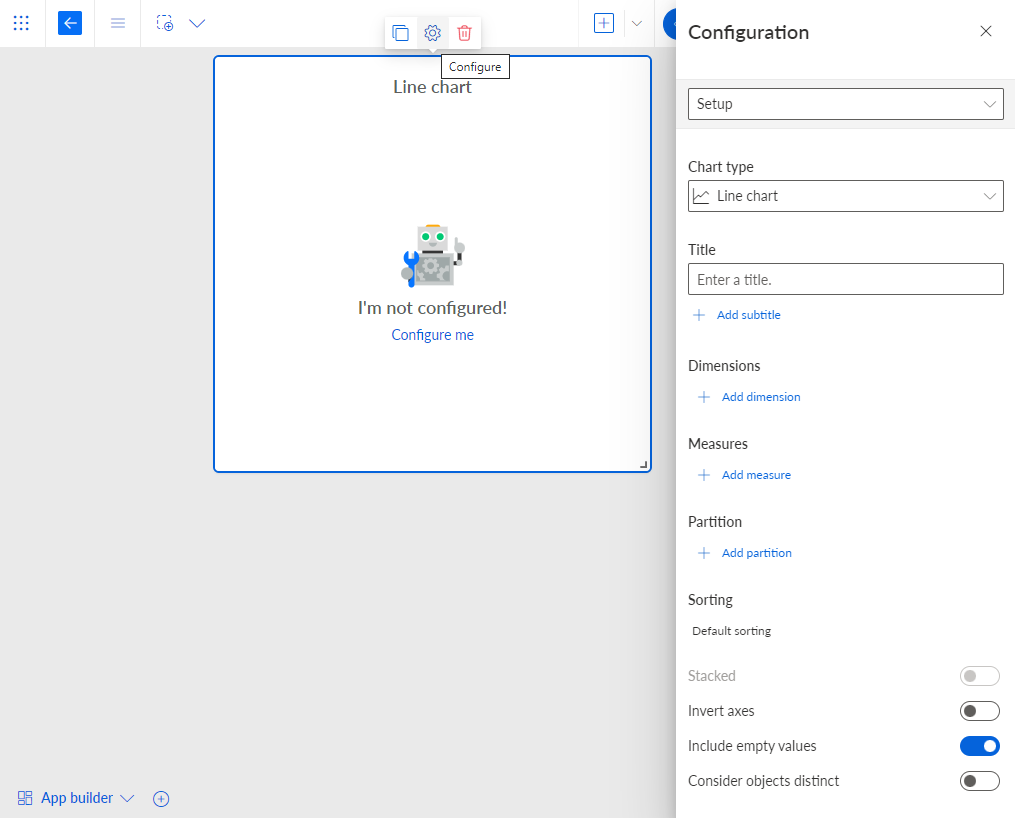
You can change the chart type of the component in the Chart type drop-down menu.
You can enter a component title in the Title input field.
To specify a subtitle, click + Add subtitle and enter a subtitle.
To display data in the component, you must first assign the corresponding data. Depending on the selected component, you can add one or more analysis criteria, that is, dimensions and measures.
You can specify a partition for the analysis criteria in your component.
You can change the sort order of the criteria values displayed in the analysis.
You can display the criteria values as a stacked chart if your analysis contains more than one dimension or measure. Enable the Stacked option.
If you want to display the dimensions on the Y-axis and the measures on the X-axis, enable the Invert axes option.
If you want to hide empty values in your analysis, disable the Include empty values option. Empty values are displayed as "-".
If you want to abbreviate the values displayed in the chart, enable the Abbreviate numbers option.
You have assigned analysis criteria to the component and configured the component setup.
A Line chart component with one dimension and two measures assigned.