Analyze process variants
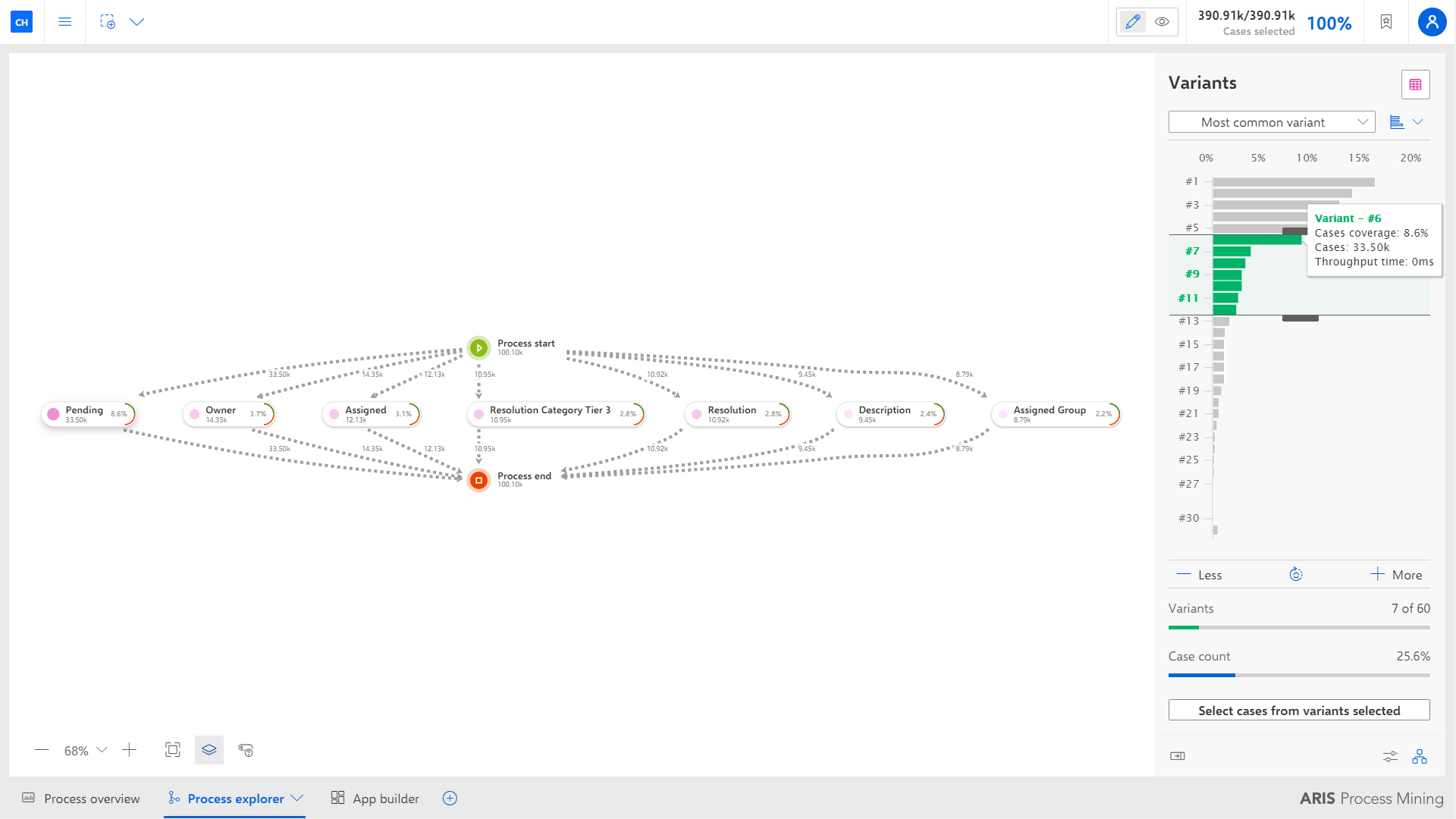
In addition to the process measure analysis, you can analyze the behavior of process variants. By default, the Process explorer shows a cumulative process, that means, a process that includes all or some of the process variants that occurred. The variant analysis helps you to analyze the structure of the different process variants down to the individual case. It allows you to compare different processes to identify possible flaws in a process.
In the Process explorer, click the
 Show variant panel icon below the Process panel.
The Variants panel lists all available variants of the displayed process. The most common variant is displayed first.
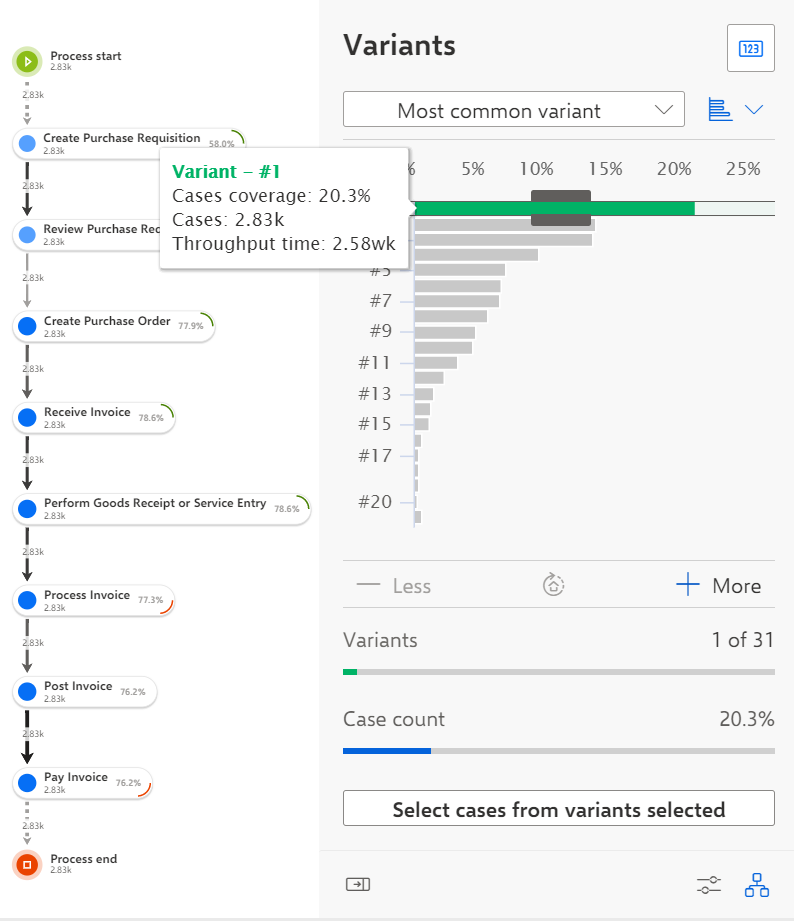
Move the mouse pointer over a variant to display more information in a tooltip.
You can display the variants in bar view or in list view. By default, they are displayed in bar view. Click the Switch variant view icon and select List view.
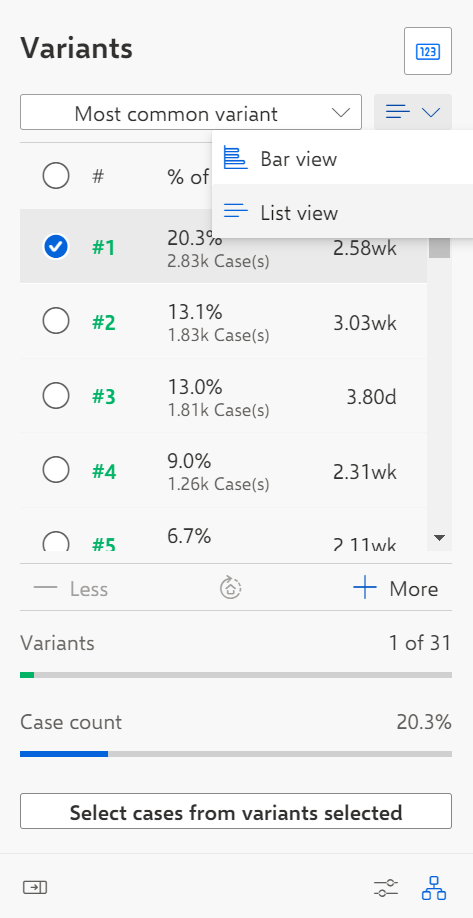
You can change the sort order of the variants. Most common variant is initially set as sort order. Click Most common variant and select a sort order in the drop-down menu.
Most common variant - Lists the variant first that occurs in most cases.
Least common variant - Lists the variant first that occurs in the fewest cases.
Longest throughput time - Lists the variant with the longest throughput time first.
Shortest throughput time - Lists the variant with the shortest throughput time first.
You can select one or multiple variants in both views. In the bar view, you can select multiple variants using the sliders.
You can increase or reduce the number of variants that are displayed in the panel. Click + More or - Less to set the number of displayed variants.
If there are more variants available than displayed in the panel, the remaining variants are summarized. Click the ... All other variants button below the variants list to select the variants that are not displayed. If you increase or reduce the number of variants that are displayed, the number of remaining variants (Other variants) is automatically adjusted.
Note the following special behavior when you increase or reduce the number of displayed variants.
+ More: All variants that are additionally displayed are marked as selected if the ... Other variants entry is selected before.
- Less: The current selection is discarded, and the first variant is selected (only in bar view).
When all variants are displayed and you reduce the number of variants so that some selected variants are hidden, the current selection is discarded and the first variant is selected.
You can configure the measure that is displayed in the analysis. Click the Configure displayed measure button in the upper right corner of the panel, and select the measure to be displayed. For more details, see the chapter Analyze process measures .
You can use selected variants as a global filter. Click Select cases from variants. The variants selection is transferred to the Selections panel and used as a global filter of your analysis. Note that only these selected variants are subsequently available in the Variants panel.
You can hide the Variants panel and display it in the compact view. Click the
 Switch to compact view icon at the bottom of the Variants panel.
Use the slider to select more variants. If you open the slider completely, you have selected all variants.
Use the +/- button to add or remove single variants.
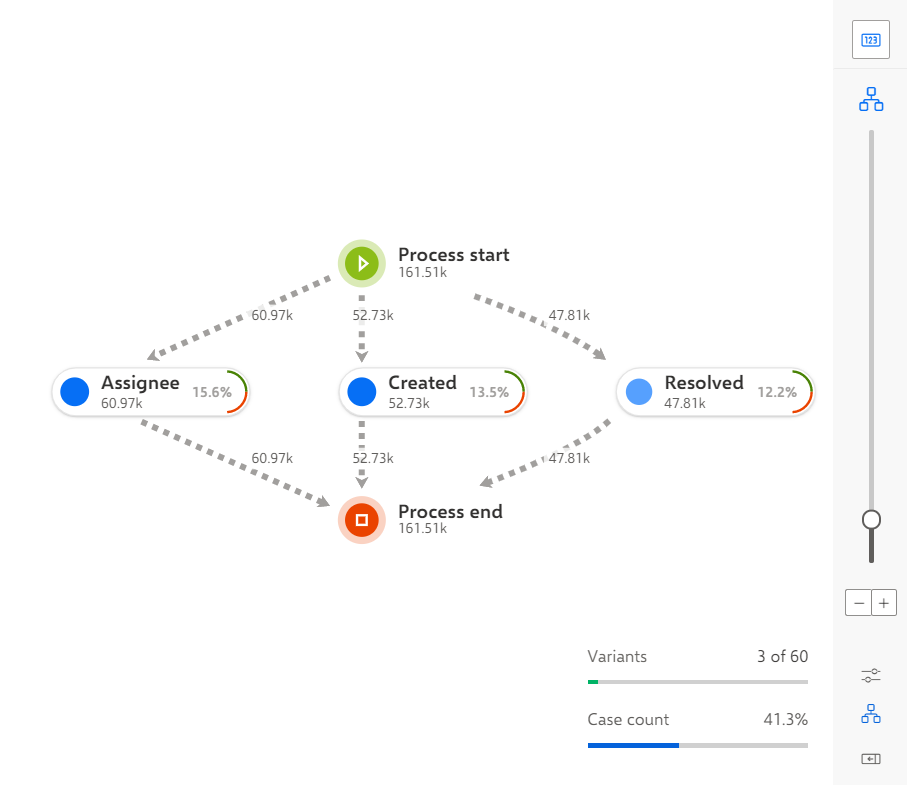
Your settings are applied.
In the following example, 7 of 60 available variants are selected, occurring in 25.6% of all cases.